Assistants
An assistant is the unit you talk to. It is a named persona with a model, a set of skills, and an avatar. Everything else in Wayland is built around assistants: teams are groups of them, channels route messages to them, and schedules trigger them.
What an assistant carries
Section titled “What an assistant carries”Each assistant bundles:
- A persona: a name, an avatar, and the system instructions that shape how it behaves.
- A model: the provider and model it thinks with. Different assistants can use different models.
- Skills: named capabilities you attach so the assistant knows how to do specific jobs.
- Optional custom paths: directories the assistant is scoped to work in.
The library
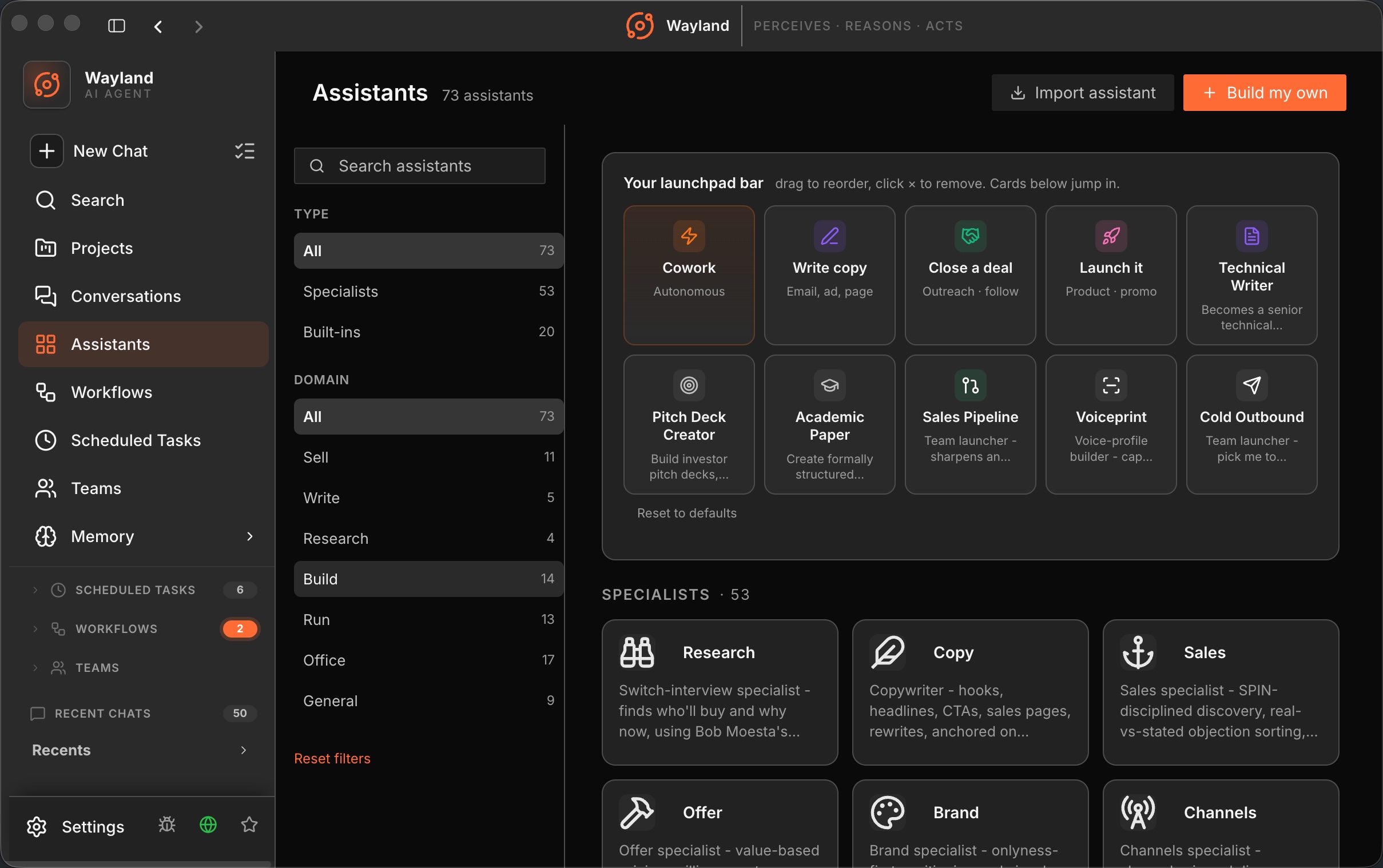
Section titled “The library”Wayland ships 88 assistants in the built-in catalog. The Assistants page reports 98, because it also lists the extension-contributed assistants and the built-in presets, and it excludes the 60 team launchers, which live on the Teams page. That catalog is drawn from two sources: 30 typed presets defined directly in the app (covering domains such as Office, Write, Build, and General), plus additional entries from a bundled extension that contributes team launchers and domain specialists. The two sources together form the starting catalog; they are not additive options you choose between. You can launch any assistant as is, customize a copy, or build your own from scratch.
The library groups assistants by type and by domain (Sell, Write, Research, Build, Run, Office, General), and a filter rail narrows by category.
Intents
Section titled “Intents”The dashboard offers seven intents as a fast way in: Sell, Write, Research, Build, Run, Office, and General. Each intent routes you to the preset assistants suited to that kind of work, so you can start without browsing the whole library. Picking the Sell intent, for instance, surfaces outbound and sales-oriented presets.
Selection follows you
Section titled “Selection follows you”Your last selected assistant is remembered across pages, so moving between the dashboard, a project, and a conversation keeps the assistant you were using rather than resetting it.
Build your own
Section titled “Build your own”When a preset is close but not exact, copy it and adjust. When you want something specific, start from the build-my-own card and define the persona, model, and skills yourself. See Create a Custom Assistant for the full walkthrough.