Teams and Standing Companies
A team is several assistants working together on one job under a leader. Where a single assistant handles a task, a team splits a larger goal across specialists who coordinate and report back.
The team launcher (primary path)
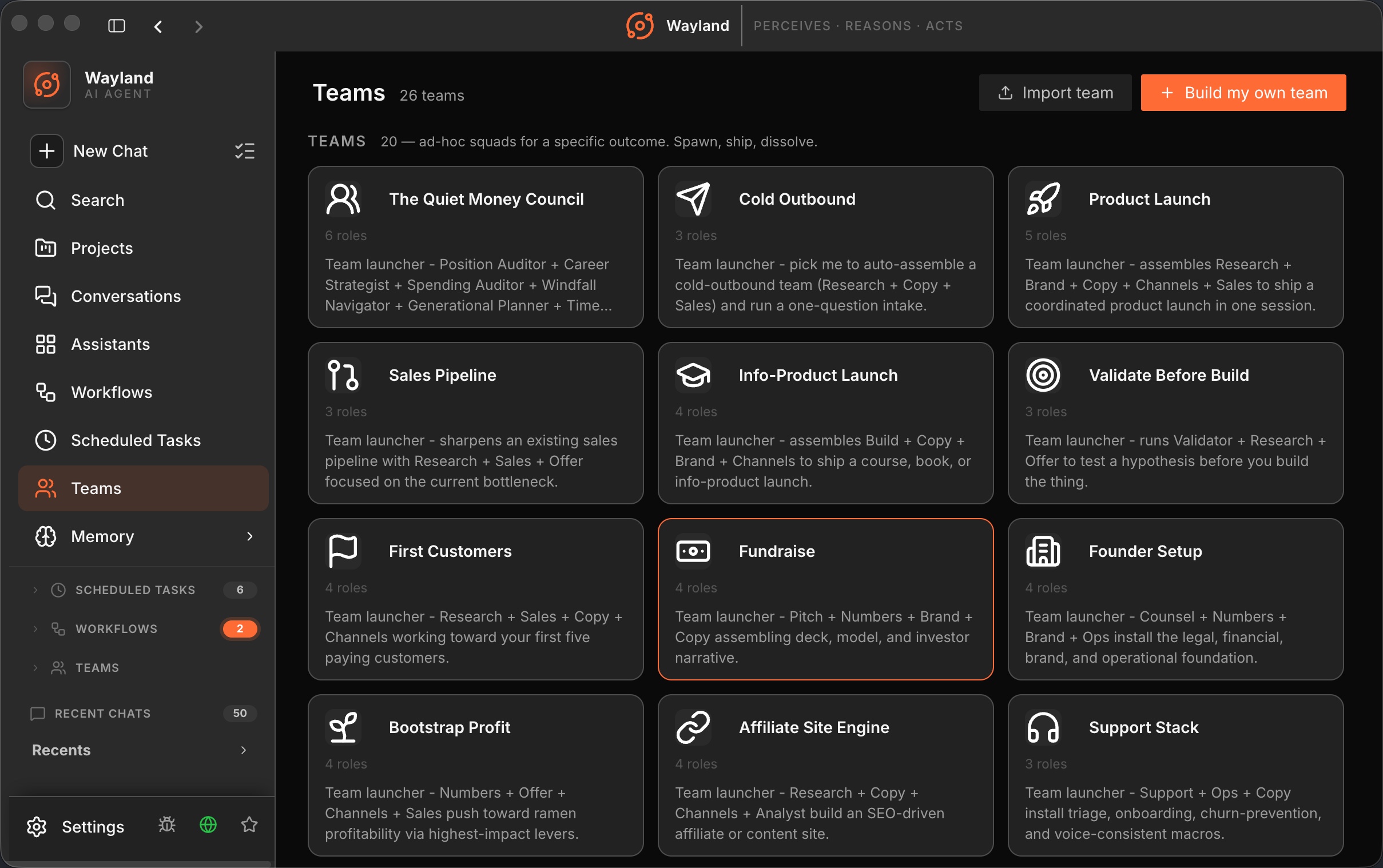
Section titled “The team launcher (primary path)”The Teams library (/teams) is the normal entry point. It lists every available team launcher, separated into two sections:
- Standing Companies: persistent teams that stay ready between sessions and keep their place in the active-teams area.
- Teams: ad-hoc launchers for a specific outcome. Spawn, ship, dissolve.
Clicking a team card opens its launcher screen (/teams/:id/launch). The launcher shows the team name, its description, and a roster table with the pre-configured leader and specialists. You can adjust each member’s model before you start. A Capability Review lists what the team can access so there are no surprises.
Clicking Build my own (or navigating to /teams/new) opens the same launcher screen in an empty state. You pick a leader, add teammates, and optionally describe the goal to let Wayland suggest a roster. See Launch and Run a Team for the full walkthrough.
The active team page
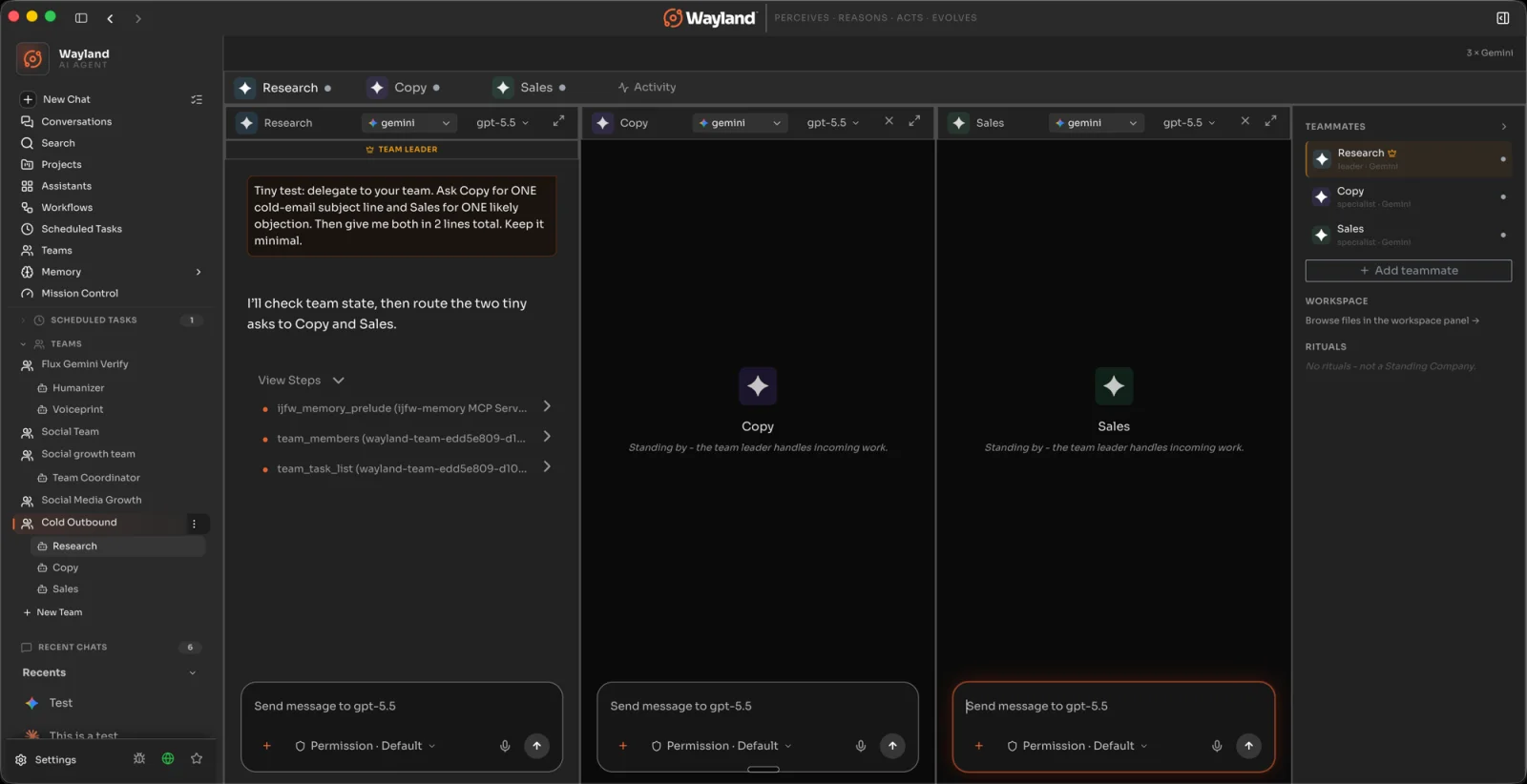
Section titled “The active team page”After you launch, Wayland navigates to the active team page (/team/:id). This is where the work happens:
- The leader card sits at the top. Give it the goal, and it directs the specialists.
- Each specialist is a tab. Open a tab to see that member’s work in detail.
- The right rail tracks overall state.
- The activity tab shows what the whole team has done.
Each member has its own model selector, so you can pair a strong reasoning model on the leader with faster models on the specialists.
Ad-hoc teams vs Standing Companies
Section titled “Ad-hoc teams vs Standing Companies”- An ad-hoc team spins up for a task and ends when you are done. It is the right choice for a one-off job.
- A Standing Company persists between sessions and gets its own entry in the active-teams area, so the same group is ready whenever you need it.
When an ad-hoc team proves useful you can promote it. Wayland checks eligibility, then a single dialog turns it into a Standing Company. See Promote a Team to a Standing Company for the steps.
Import a team
Section titled “Import a team”The Teams library has an Import team button. Pick a .json team export file and Wayland shows a Capability Review before finalising the import, so you can grant or restrict file, network, and agent permissions for the imported team.
Legacy team mode
Section titled “Legacy team mode”Wayland has a second, older team surface at the route /team/:id that predates the launcher library. It is gated by the TEAM_MODE_ENABLED flag in the application config. When the flag is on the route is reachable, but this surface is not the intended entry point for new teams. Start from the Teams library instead.
When to use a team
Section titled “When to use a team”Reach for a team when a job has clearly separable parts that benefit from parallel, specialised work: a research sweep across sources, an engineering task with build and review roles, or a content pipeline with distinct stages. For focused, single-thread work, one assistant is simpler.
One shared workspace
Section titled “One shared workspace”From Wayland 0.12.0, a team’s agents run against a single shared workspace, and each agent can be put on the backend and model you choose for it. They work the same ground together rather than in separate corners.