Remote Access and WebUI
The desktop app runs on one machine, but you are not always at it. Remote access lets you reach the same agent from a browser or a phone. The desktop hosts a small web server and a WebUI, so your assistants, conversations, and channels are available from another device without moving your data off the machine where it lives.
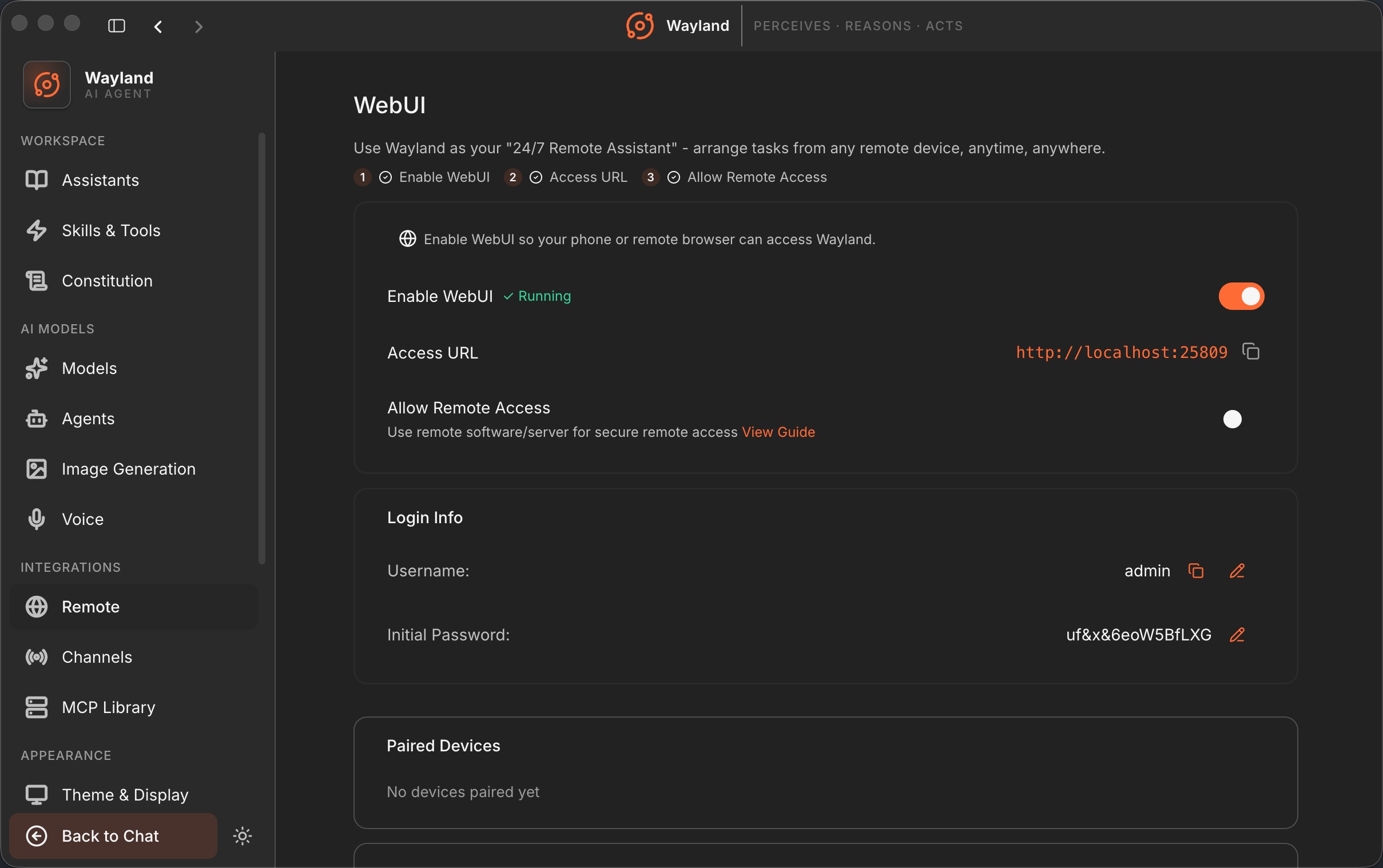
The web server and WebUI
Section titled “The web server and WebUI”Inside the desktop app, two processes provide remote access: a web server that handles connections, and the WebUI that renders the interface a remote browser sees. When you enable remote access, these come up and serve the same agent the desktop is driving. The remote view is a window onto the running app, not a separate copy, so what you see remotely matches what is on the desktop.
Connecting from another network
Section titled “Connecting from another network”On the same Wi-Fi, a paired device reaches the WebUI directly over the local network. To reach it from anywhere else, the recommended path is Tailscale: a private network that connects your devices with no public IP, port forwarding, or server, so your machine is reachable from your phone or laptop on any network while staying private to you. For always-on, multi-user setups there is also server deployment. The step-by-step setup for all three lives in Enable Remote Access and Pair a Device.
Pairing a device
Section titled “Pairing a device”Access is granted per device through pairing rather than left open. You pair a phone or browser, and from then on that device is a known, authorized client. The settings panel lists your paired devices so you can see which ones have access and revoke any of them. Each request passes through authentication, so an unpaired device cannot reach the agent.
An activity log records what paired devices have done, which gives you a record of remote access rather than a silent door. Together, the paired-devices list and the activity log are the controls for who can reach your agent and what they have been doing.
Using the WebUI from a phone
Section titled “Using the WebUI from a phone”There are two distinct ways a phone is relevant to Wayland:
-
Remote access: you reach your desktop or server’s running agent from your phone by pairing the device and opening the WebUI URL (or scanning a QR code). This is what this page is about.
-
Responsive web UI: the WebUI itself is fully responsive. Settings, the composer, and every panel adapt to a phone-sized browser window. This means the experience on a paired phone is now a proper mobile layout rather than a shrunk-down desktop view. No separate native app is required and none is available; this is responsive web, not iOS or Android native.
How it relates to channels
Section titled “How it relates to channels”Remote access and channels both let you reach an assistant from somewhere other than the desktop window, but they differ. A channel puts the assistant inside a messaging platform like Telegram or Slack, on that platform’s terms. Remote access gives you the Wayland interface itself from another device. Use a channel when you want the agent in a chat app your audience already uses, and remote access when you want the full app from your own phone or laptop. See Enable Remote Access and Pair a Device.