Build a Sales Outreach Assistant
This tutorial takes you from a blank dashboard to a working outbound assistant that drafts a cold sequence, sends through a channel, and follows up on a schedule. It uses the desktop app throughout. You need a connected model provider first. If you have not done that, see Connect Your First Model.
1. Open the Sell intent
Section titled “1. Open the Sell intent”From the dashboard launch bar, choose the Sell intent pill. It expands into a short list of starter prompts. The first one, “Cold outbound that books meetings”, routes to the built-in cold-outbound assistant.
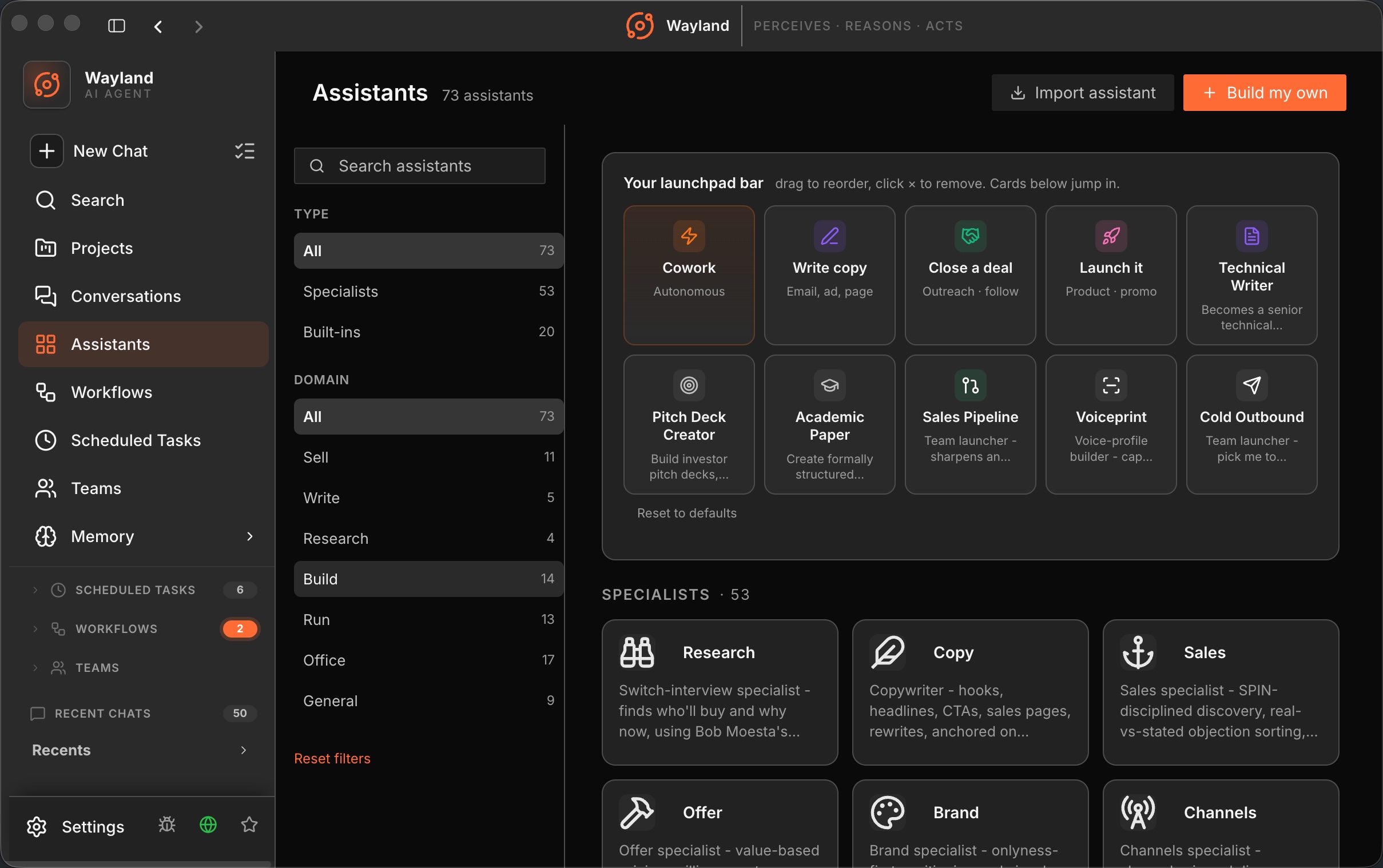
Pick that starter. The assistant opens with a first prompt already filled in:
Draft a 3-step cold outbound sequence for our ICP that books discovery calls.
Add a sentence or two about who you sell to and what you are offering, then send. The assistant returns a three-message sequence you can edit in place.
2. Make it yours
Section titled “2. Make it yours”A starter assistant is a good base, but outreach works better when the persona is specific. Open the assistant editor from the assistant header.
In the edit drawer you can:
- Rename it to something like “Outbound (EMEA)”.
- Set the avatar so it is easy to spot in the library.
- Pick the model. A strong model writes better first drafts; a faster model is fine for high-volume variations.
Save. The customized assistant now lives in your Assistants library and launches the same way next time.
3. Attach a skill for repeatable structure
Section titled “3. Attach a skill for repeatable structure”If you run the same kind of sequence often, capture it as a skill so the assistant produces it consistently. From the edit drawer, add a skill that holds your sequence template and tone rules. Skills are named prompt snippets the assistant can invoke on demand, with variable substitution for things like the prospect name. See Skills for what they can hold.
Attach the skill, save, and the assistant can now apply it by name in any conversation.
4. Connect a channel
Section titled “4. Connect a channel”To send and receive outside the app, connect a channel. Telegram is a quick first one because the token comes from a single bot setup.
- Open Settings -> Channels and pick Telegram.
- Follow Channels: Telegram to create a bot and paste its token.
- Connect and wait for the status to move from idle to connected.
- Route the channel to your outbound assistant so inbound replies land in the right place.
Send yourself a test message to confirm the round trip works. If the status stays on idle, see Channel Connection Issues.
5. Schedule a follow-up
Section titled “5. Schedule a follow-up”Outreach is mostly follow-through. Use the scheduler to nudge yourself, or to post a daily summary to a channel.
- Open the Scheduled Tasks page and create a task.
- Choose a target. A channel-message target posts text to a named channel on a cron expression; a skill target runs a skill instead.
- For a Monday 8am check-in, use the expression
0 8 * * 1.
This is the same job shape the engine exposes as wayland-core cron add "0 8 * * 1" --channel <name> --text "...". Either surface writes to the same scheduler. See Schedule Tasks (Cron) for the full dialog.
What you built
Section titled “What you built”You now have a named outbound assistant with a reusable skill, a connected channel for sending and receiving, and a recurring follow-up. From here you can clone the assistant per region or per campaign, each with its own model and channel.