Build, Import, and Pin Skills
Skills are reusable capabilities your assistants can call on: a packaged set of instructions, a tool sequence, or a procedure you want available by name. This guide covers building, importing, and organizing them in the desktop.
Open the Skills panel
Section titled “Open the Skills panel”Go to Settings > Skills. The library lists every skill, with a filter rail to narrow by source or status and a health summary at the top.
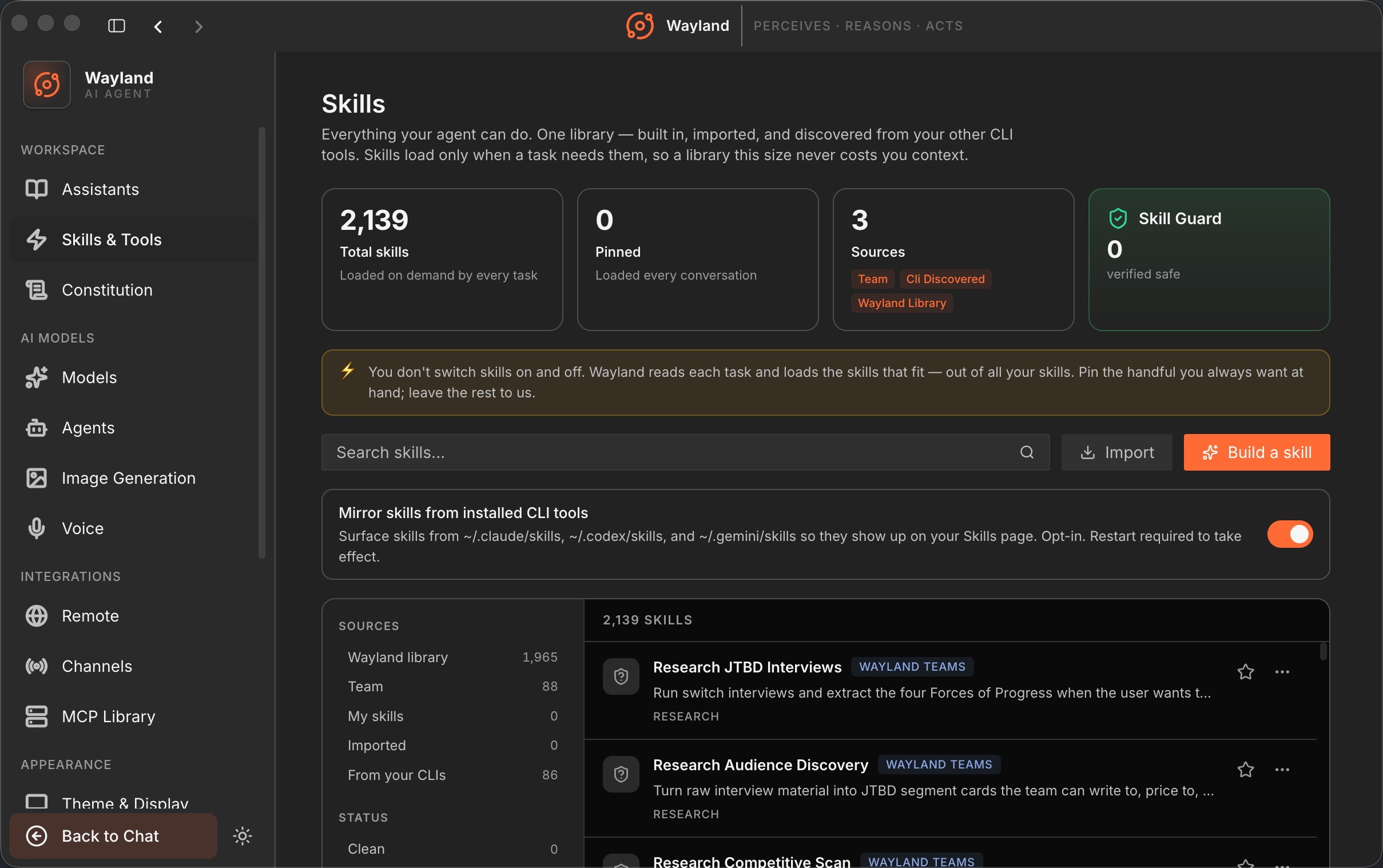
Build a skill
Section titled “Build a skill”- Choose Build skill.
- Give it a name and a one-line description. The description is what an assistant reads to decide when to use the skill, so keep it concrete.
- Write the body: the instructions the skill runs.
- Save. The skill joins the library and becomes available to attach to assistants.
A skill body can take arguments and reference its own directory. For the full authoring format, see Skill Authoring Reference.
Import a skill
Section titled “Import a skill”To bring in a skill from elsewhere, use the import option and point it at the source. Imported skills behave like ones you build by hand.
Organize and pin
Section titled “Organize and pin”- Use the filter rail to find skills by source or status.
- Pin the skills you rely on so they stay near the top of the library.
- Open a skill to see its detail drawer, where you can review and edit it.
Keep the library healthy
Section titled “Keep the library healthy”The health summary flags skills that need attention: stale skills that have not changed in a long time, near-duplicate descriptions, and broken references. From the CLI, wayland-core --skills-audit runs the same check and writes a report. See Skills Lifecycle.