Stand Up a Software Engineering Team
A team puts several assistants on one job under a leader. This tutorial launches Dev Shop, a bundled engineering team, points it at a repository, runs a build-and-review task across its specialists, and reviews the result. You need a connected model provider first. See Connect Your First Model if you have not done that yet.
1. Launch the Dev Shop team
Section titled “1. Launch the Dev Shop team”Open the Teams library. The library separates Standing Companies, which are teams you keep, from ad-hoc Teams, which are teams for a single job.
Find Dev Shop and open it. Dev Shop is an engineering Standing Company: a leader called Ship, who acts as your CTO, plus four specialists who persist between sessions:
- Smith owns specs and architecture.
- Patch owns release engineering, CI/CD, and ops.
- Verdict owns QA, code review, and quality.
- Sentry owns security review and technical compliance.
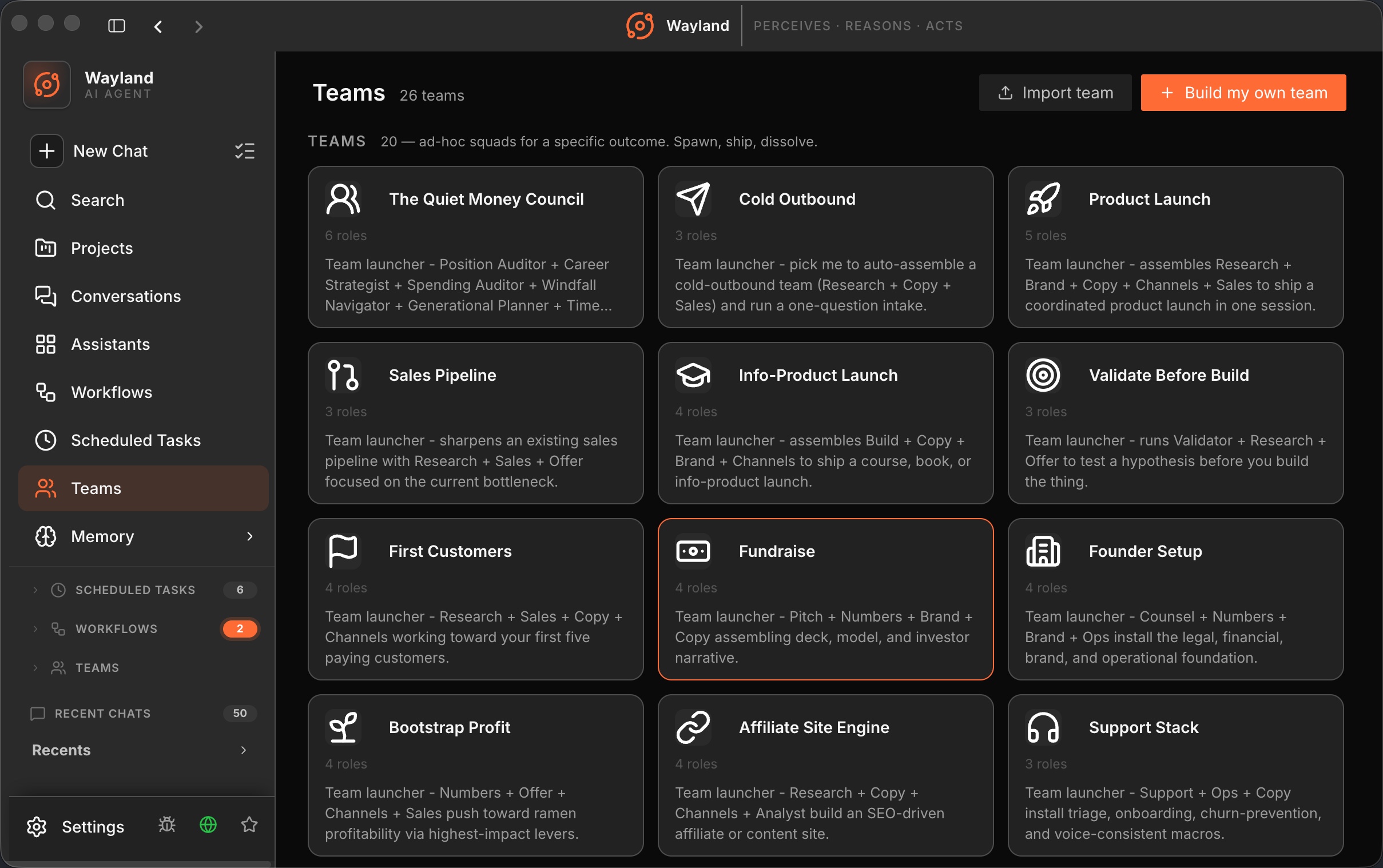
Because Dev Shop is a Standing Company, it persists once launched. On first run Ship spawns the four teammates and asks you a short intake (business one-liner, ninety-day mission, stack, codebase state, budget) so the team has context before it starts work. Answer it in one reply, in any order.
The names and lineup above are what ships in the bundle. If a launcher name in your library differs, your extensions may have changed it. The exact specialists are defined by the Dev Shop launcher; you do not have to assemble them by hand.
2. Point the team at a repository
Section titled “2. Point the team at a repository”Give the team a working context. A project workspace scopes the team to one repository so file reads and edits stay inside it. Create or open a project for the repo, then launch the team from there. The engine equivalent is the --project-dir flag and hierarchical project context (AGENTS.md and friends), so the same instructions apply whether you drive from the app or the CLI. See Projects and Workspaces.
3. Drive the work
Section titled “3. Drive the work”On the team page:
- Ship, the leader, sits at the top. Give it the goal in plain language, for example “add input validation to the upload endpoint and write tests”. Ship breaks the goal down and directs the specialists. The Dev Shop launcher also recognizes a “Build a feature:
” request and chains the specialists into real artifacts: Smith writes the spec, Patch writes the PR description, Verdict produces a review checklist, and Sentry runs a security review. - Each specialist is a tab. Open a tab to follow one member’s work in detail, such as Smith writing the spec or Verdict reviewing the diff.
- The right rail tracks overall state, and the activity tab shows what the whole team has done.
Each member has its own model selector. Pair a strong reasoning model on Ship with faster models on specialists to balance quality and cost.
4. Handle approvals
Section titled “4. Handle approvals”Like any assistant, team members ask before using tools that touch your system, such as running a command or writing a file. Pending permissions surface on the team page. Approve or deny them as the work proceeds. You stay in control of anything that runs.
If you trust a kind of call, approve and remember it so the team stops asking for that category. For unattended runs the engine offers --auto-approve, but in an interactive session keeping the gate on is the safer default.
5. Review the activity log
Section titled “5. Review the activity log”When the run settles, open the activity tab to see the full trace: which specialist did what, the tool calls they made, and the results. This is where you confirm the tests were written and the build passed before you trust the output. Read the diff the reviewer produced and the engineer’s edits side by side.
6. Keep working with the standing team
Section titled “6. Keep working with the standing team”Dev Shop is a Standing Company, so there is nothing to promote: the team already persists between sessions and keeps its own entry in the active-teams area. Ship sets up a weekly standup on first run, so the team checks in on its own and you pick the work back up next time you open the repo. To run one on demand, ask Ship to “run a standup now”.
If you instead build an ad-hoc team from scratch and want to keep it, you can promote that team to a Standing Company. See Promote a Team to a Standing Company.
What you built
Section titled “What you built”You launched the Dev Shop engineering team, scoped it to a repository, ran a real task across specialists with approvals in place, verified the work in the activity log, and left a standing team in place that survives between sessions.