Your First Conversation
You connected a model during onboarding, so you are ready to put the agent to work. (If you skipped that or want to add or switch providers, see Connect Your First Model first.) A conversation in Wayland is more than chat: the assistant can read and write files, run commands, and search, with your approval.
Start a chat
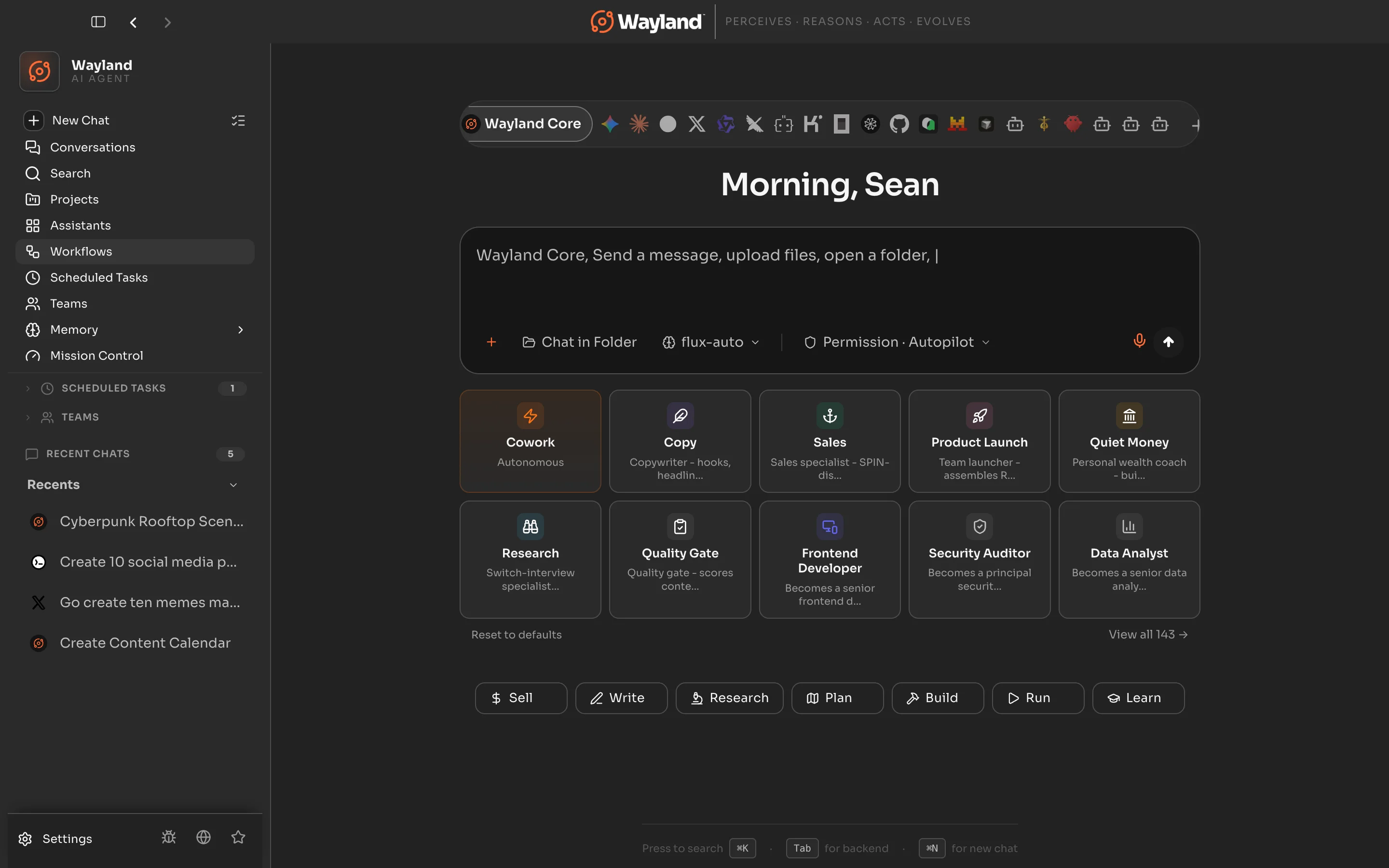
Section titled “Start a chat”From the dashboard, the new-chat launcher shows a row of intent pills. These are the starting points for a fresh conversation, and they are a different surface from the focus options you picked in onboarding. They appear in this order:
Sell, Write, Research, Plan, Build, Run, Learn
To start:
- Pick a starting point. You can type straight into the launch bar, choose an intent pill (each one reveals a few ready-made starter prompts), or open a starter card.
- Type a request and send it.
A good first task is something concrete and local, for example:
List the files in my Downloads folder and summarize what is there.
Approve tools as they run
Section titled “Approve tools as they run”When the assistant wants to use a tool, such as running a shell command or writing a file, it asks first. An inline approval prompt shows exactly what it intends to do. You can:
- Approve the single call,
- Approve and remember so similar calls run without prompting, or
- Deny and tell it to try another way.
This permission gate is on by default. You stay in control of anything that touches your system. To learn how approvals and auto-approve work, see the CLI flag reference (the same model applies in the desktop app).
Watch the work
Section titled “Watch the work”As the assistant works, the conversation shows its messages, tool calls, and results. A workspace preview pane displays files it reads or edits so you can follow along without leaving the window.
Save and resume
Section titled “Save and resume”Conversations are saved automatically. Find earlier ones under Recent Chats in the sidebar and pick up where you left off. The agent keeps the thread, including what it learned.
Where to go next
Section titled “Where to go next”You now know the core loop: ask, approve, review. From here:
- Give a task its own persona with a custom assistant.
- Put several assistants on a job with teams.
- Connect more capabilities by installing MCP servers.