A Daily Briefing with Cron and Channels
This tutorial schedules a recurring job that posts a briefing to a channel every morning. You will build a skill that produces the briefing, schedule it with cron, and verify it runs. The schedule shape is identical whether you create it in the desktop app or with the wayland-core CLI, so this covers both.
1. Build a briefing skill
Section titled “1. Build a briefing skill”A skill is a named prompt snippet the agent invokes on demand. Create one that produces your morning briefing. From the desktop, use the Build Skill modal in Settings -> Skills. From the CLI, write a SKILL.md under your skills directory:
---name: morning-briefingdescription: Produce a short morning briefing---
Write a short morning briefing covering:- Today's calendar at a glance- Any overnight messages that need a reply- The single most important thing to do first
Keep it under 150 words.
You can pull live context into the body with shell expansion, for example a line like !`date`, which runs the command and substitutes its output. See Skills for variables and shell expansion.
2. Schedule it in the desktop app
Section titled “2. Schedule it in the desktop app”Open the Scheduled Tasks page and create a task.
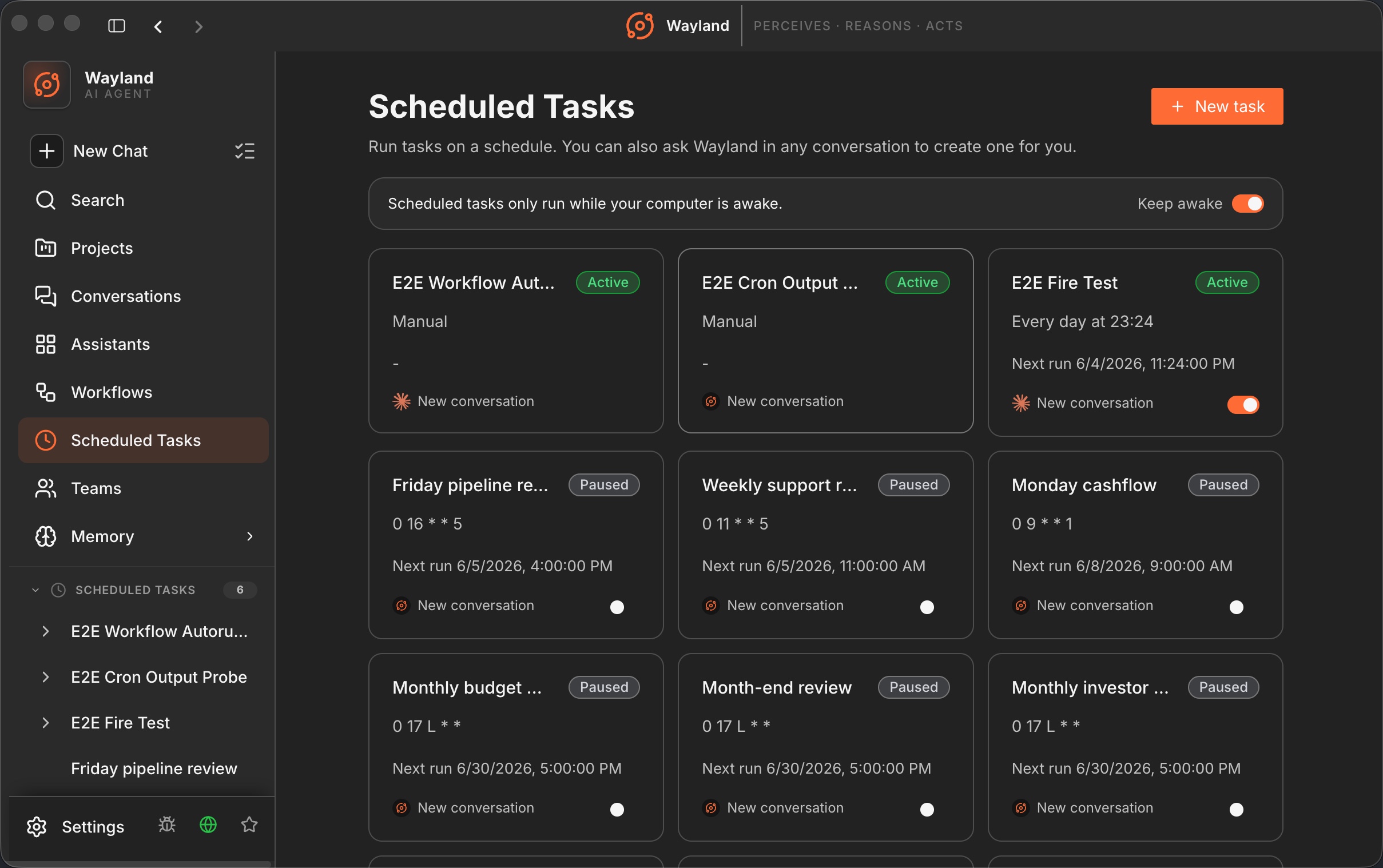
In the create dialog, choose a target:
- A channel-message target posts a fixed text to a named channel on the schedule.
- A skill target invokes a skill on the schedule, so the briefing is generated fresh each time.
For a daily briefing, pick the skill target and point it at morning-briefing. Set the cron expression to 0 8 * * * for 8am every day. Save and make sure the task is enabled.
3. Or schedule it from the CLI
Section titled “3. Or schedule it from the CLI”The CLI writes to the same scheduler. The three target kinds match the dialog: exactly one of --slash, --channel, or --skill.
# Run a skill every morning at 08:00wayland-core cron add "0 8 * * *" --skill morning-briefing
# Post fixed text to a channel every Monday at 08:00wayland-core cron add "0 8 * * 1" --channel team --text "Good morning"
Cron expressions accept the 5-field crontab shape or the 6-field form. Jobs persist to $WAYLAND_HOME/cron/jobs.json. List, inspect, and toggle them:
wayland-core cron listwayland-core cron status <id>wayland-core cron disable <id>4. Confirm the runner fires
Section titled “4. Confirm the runner fires”The runner picks up changes on its next tick and re-reads the job file on every list, so a freshly added job is live without a restart. To confirm a job actually fired, check its history:
wayland-core cron history <id> --limit 10Each record shows the timestamp, the outcome, the duration, and an error message if one occurred. In the desktop app, open the task detail page to see the same fire records and the current status tag.
5. Get notified when it lands
Section titled “5. Get notified when it lands”So the briefing reaches you, route the channel-message target at a channel you watch, and turn on the channel-message notification in Settings -> Notifications. Set quiet hours if you do not want the 8am post to alert before you are awake.
What you built
Section titled “What you built”You built a briefing skill, scheduled it to run every morning against a channel, confirmed the runner fired through the history, and wired a notification so the result reaches you.