Enable Remote Access and Pair a Device
Remote access lets you reach the agent running on your desktop from another device, such as a phone or a second browser. The desktop runs a built-in web server and WebUI; you turn it on, choose how you want to connect, and manage which devices have access.
Three ways to connect
Section titled “Three ways to connect”Pick the one that matches where you are reaching the agent from:
| Method | Use case | Difficulty | Best for |
|---|---|---|---|
| LAN | Phone or laptop on the same Wi-Fi | Easy | Quick access at home or in the office |
| Tailscale | Reaching home from anywhere, or on mobile data | Very easy | The recommended way to connect across networks |
| Server deployment | Multi-user, running 24/7 | Medium | Production and shared setups |
Turn on the WebUI
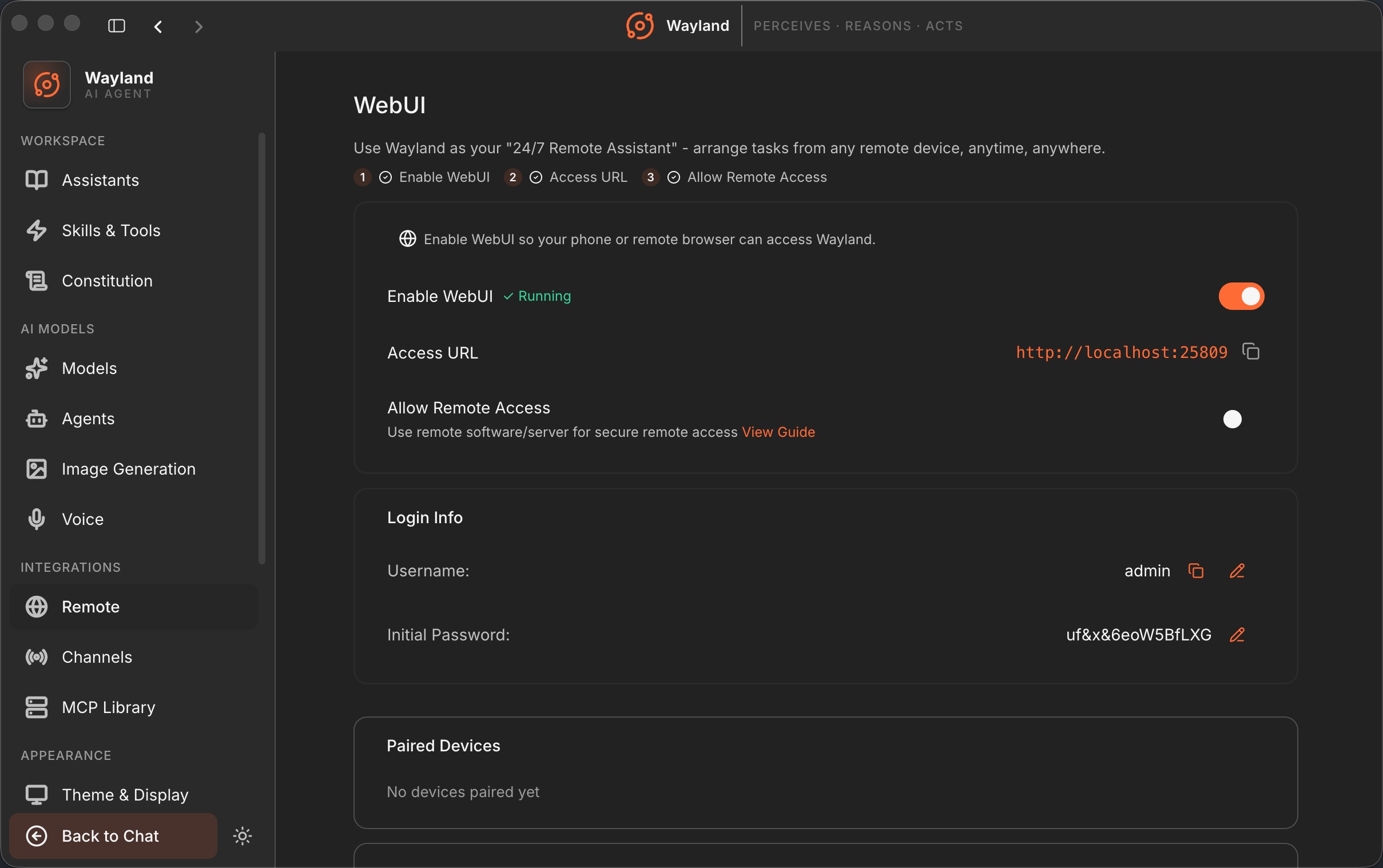
Section titled “Turn on the WebUI”All of this is done in the settings UI, not the command line.
- Open Settings and select WebUI (the gear icon, lower-left).
- Toggle Enable WebUI on. After a few seconds it shows
✓ Running. - On this machine, the WebUI is now at
http://localhost:25808(the default port, configurable in the config file). Sign in with the credentials below.
Method 1: Same network (LAN)
Section titled “Method 1: Same network (LAN)”For another device on the same Wi-Fi:
- Toggle Allow remote access on. If the WebUI is already running, it restarts to apply the change.
- Open
http://<your-LAN-IP>:25808on the other device (the panel shows the exact network address; click to copy).
Method 2: Anywhere with Tailscale (recommended)
Section titled “Method 2: Anywhere with Tailscale (recommended)”Tailscale gives you a private connection to your machine from any network, with no public IP, port forwarding, or server. It is the simplest way to reach your agent when you are not on the same Wi-Fi.
- In the WebUI panel, toggle Enable WebUI on. You do not need to enable “Allow remote access” with Tailscale, because Tailscale handles the network for you.
- Install Tailscale on the machine running Wayland and sign in, so it shows Connected. Note its Tailscale IP.
- Install Tailscale on the device you want to connect from and sign in to the same account.
- From that device, open
http://<tailscale-ip>:25808.
To be explicit, the right Tailscale combination is: Enable WebUI on, Allow remote access off, Tailscale connected. You do not need “Allow remote access” or any port forwarding because Tailscale carries the connection privately.
Because the connection is private to your Tailscale network, this is both the easiest and the safer cross-network option.
Method 3: Server deployment
Section titled “Method 3: Server deployment”For an always-on, multi-user setup, run Wayland on a server (Linux with systemd, or macOS with a LaunchAgent) and put it behind a firewall with HTTPS. Use this when several people need the agent around the clock rather than a single phone reaching your desktop.
Sign in
Section titled “Sign in”Once the WebUI is running, the panel shows everything you need:
- Username:
admin - Password: shown on first launch (click to copy). If it is hidden, use the reset control to generate and reveal a new one.
- QR code login: when remote access is on, scan the QR code with your phone to sign in automatically. The code is valid for five minutes; refresh it if it expires.
Pair and manage devices
Section titled “Pair and manage devices”The paired-devices card lists every device that has access. Pairing establishes trust between your desktop and a new device, and each request passes through authentication, so an unpaired device cannot reach the agent. Revoke any device from this card to cut off its access immediately. The activity log shows recent connections and actions, so remote access is a reviewable record rather than a silent door.
Security
Section titled “Security”- Change the initial password from the settings UI.
- For access across networks, prefer Tailscale over exposing the port directly.
- For server deployments, put the WebUI behind a firewall and use HTTPS.