Schedule Tasks (Cron)
A scheduled task runs on a clock: a skill that fires each morning, a status command on a regular interval, or a message posted to a channel on a cadence. The desktop has a scheduler page, and the engine exposes the same jobs through the cron command.
Open the scheduler
Section titled “Open the scheduler”Open the Scheduled Tasks page. It lists every job with its schedule, target, and current state.
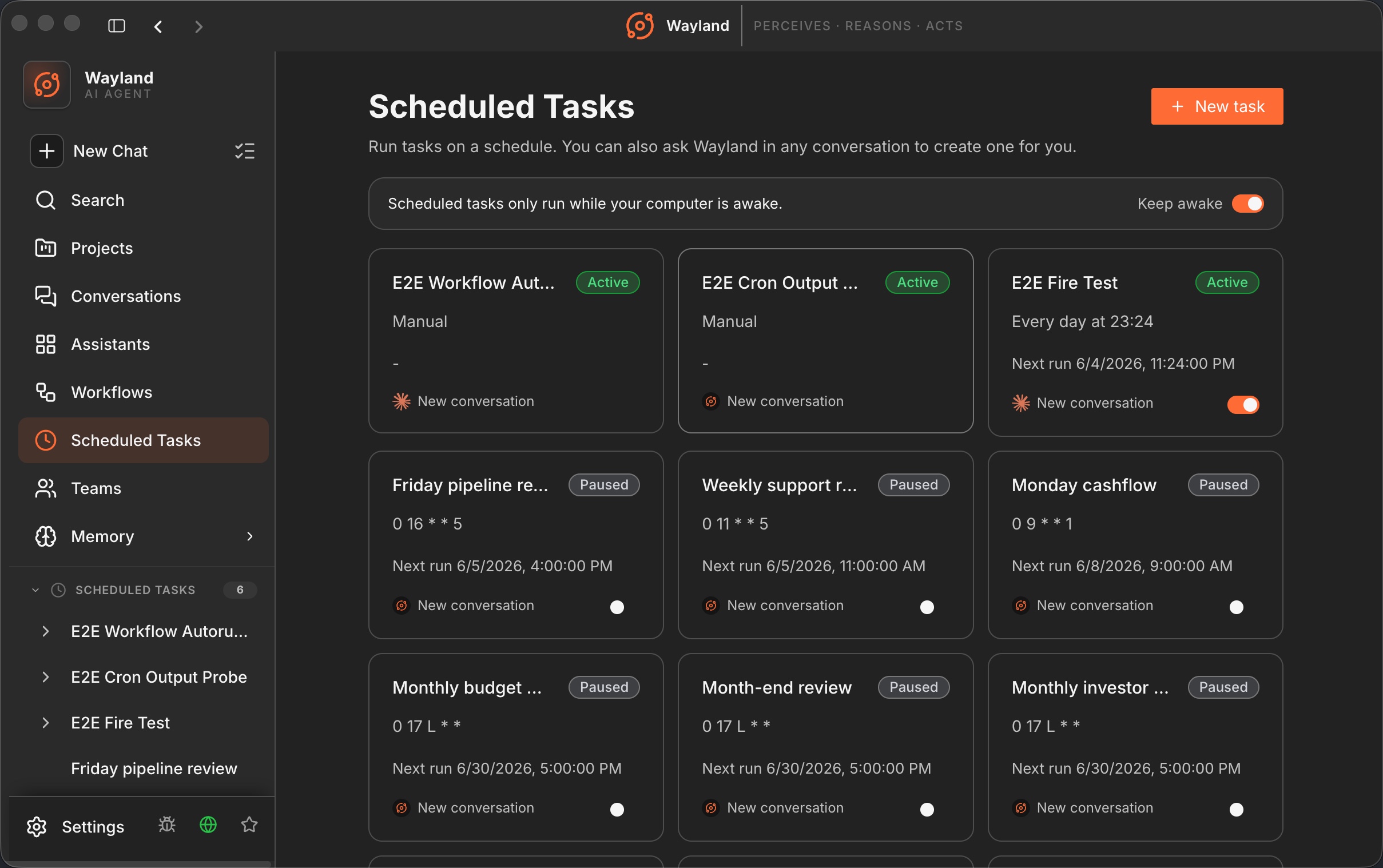
Create a task
Section titled “Create a task”- Open the create-task dialog.
- Give the task a name, and write the prompt: the instructions the agent runs each time the task fires.
- Set the schedule, with the frequency picker (hourly, daily, weekly, weekdays) or a custom cron expression. For example,
0 8 * * 1is every Monday at 08:00. - Choose the agent that runs it, and optionally set the execution mode, workspace, and model.
- Save.
Manage tasks
Section titled “Manage tasks”From the list you can enable or disable a task without deleting it. A disabled task stays on disk and is skipped until you turn it back on. Open a task to see its detail, including its recent runs.
How a task behaves with nobody watching
Section titled “How a task behaves with nobody watching”A scheduled run happens when you are not there, so Wayland holds it to a stricter rule than a session you are sitting in front of.
The task runs its tools without prompting — that is the point of scheduling it. But if it reaches a decision it cannot make on its own, it does not wait forever and it does not assume yes. The hold carries a deadline, kept strictly shorter than the gap to that task’s next run, and on expiry it resolves as a denial: never an approval, never cached, and never written to disk. An expired decision cannot become a standing permission the next time the task fires.
Wayland surfaces that expiry as its own event rather than a generic error, so a task that stopped because it was waiting on you is distinguishable from one that failed.
Two practical consequences:
- Give a task the narrowest workspace that still lets it work. A scheduled run operates where you point it.
- A task that keeps expiring is telling you something. It is hitting a decision it needs a human for. Either widen what it is allowed to do, or narrow what you asked it to do.
The same from the CLI
Section titled “The same from the CLI”The engine’s cron command manages the same jobs:
wayland-core cron add "0 9 * * *" --skill morning-briefwayland-core cron add "0 8 * * 1" --channel team --text "Good morning"wayland-core cron add "*/15 * * * *" --slash "/status"wayland-core cron listwayland-core cron disable <id>Jobs persist to $WAYLAND_HOME/cron/jobs.json. A background runner started at session boot picks up changes on its next tick. To keep jobs running without an open session, the engine can run the cron runner as a detached daemon.